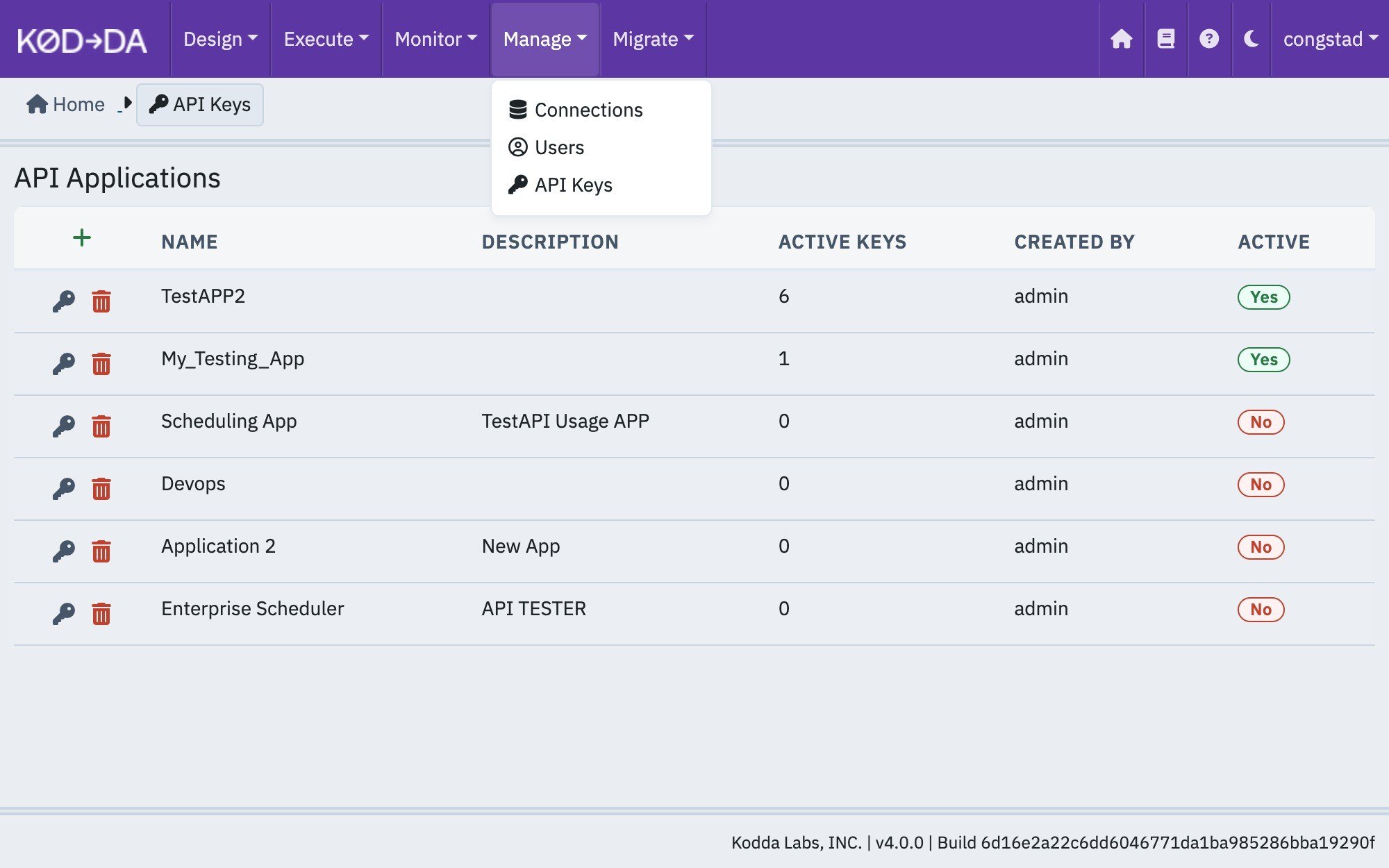
API Keys are available to users in the Admin group only. Open them from the Manage menu in the top navigation.
How it works
- An API Application represents one integrating system (for example, “Airflow” or “Nightly Reporting”). It has a name, an optional description, and an active flag.
- Each application can hold any number of API Keys. A key is a string beginning with
kodda_that the caller sends as a Bearer token. - Kodda stores only a hash of each key. The full key is shown once, at the moment it is generated, and cannot be retrieved later. If a key is lost, revoke it and generate a new one.
- Keys can be revoked individually. Deactivating an application revokes all of its keys at once.
- Requests made with an API key run with full access to the external API; they are not restricted by the role of the admin who created the key.
API Applications screen
The API Applications screen lists every application, the number of active keys it holds, who created it, and whether it is active.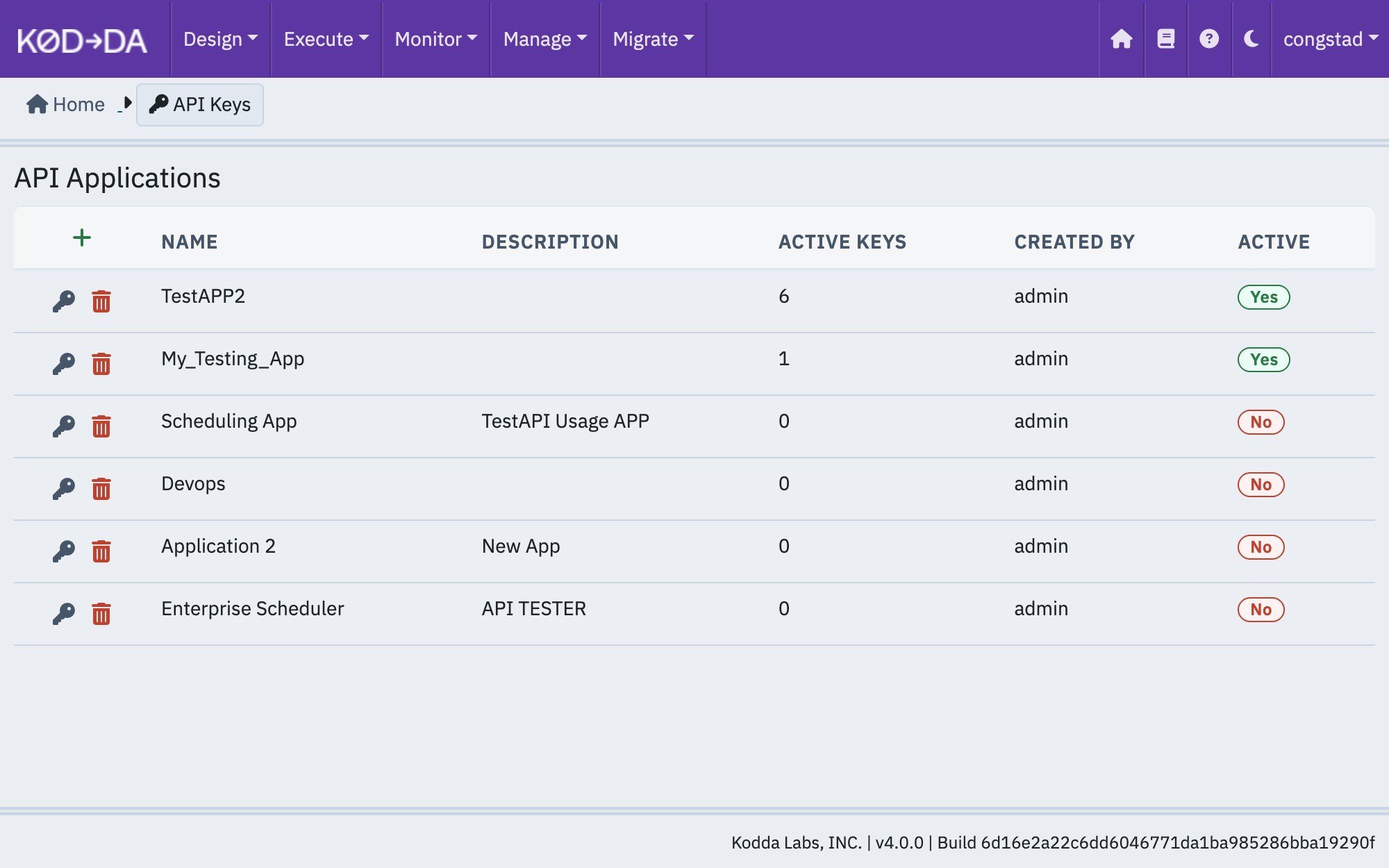
- Click the + icon in the table header to create a new application.
- Click the key icon on a row to view and manage that application’s keys.
- Click the trash icon on a row to deactivate the application. This revokes all of its keys; any integration using them will start receiving
401responses immediately.
Create an application
Clicking + opens the Create API Application form. Enter a name (required, must be unique) and an optional description, then click Create.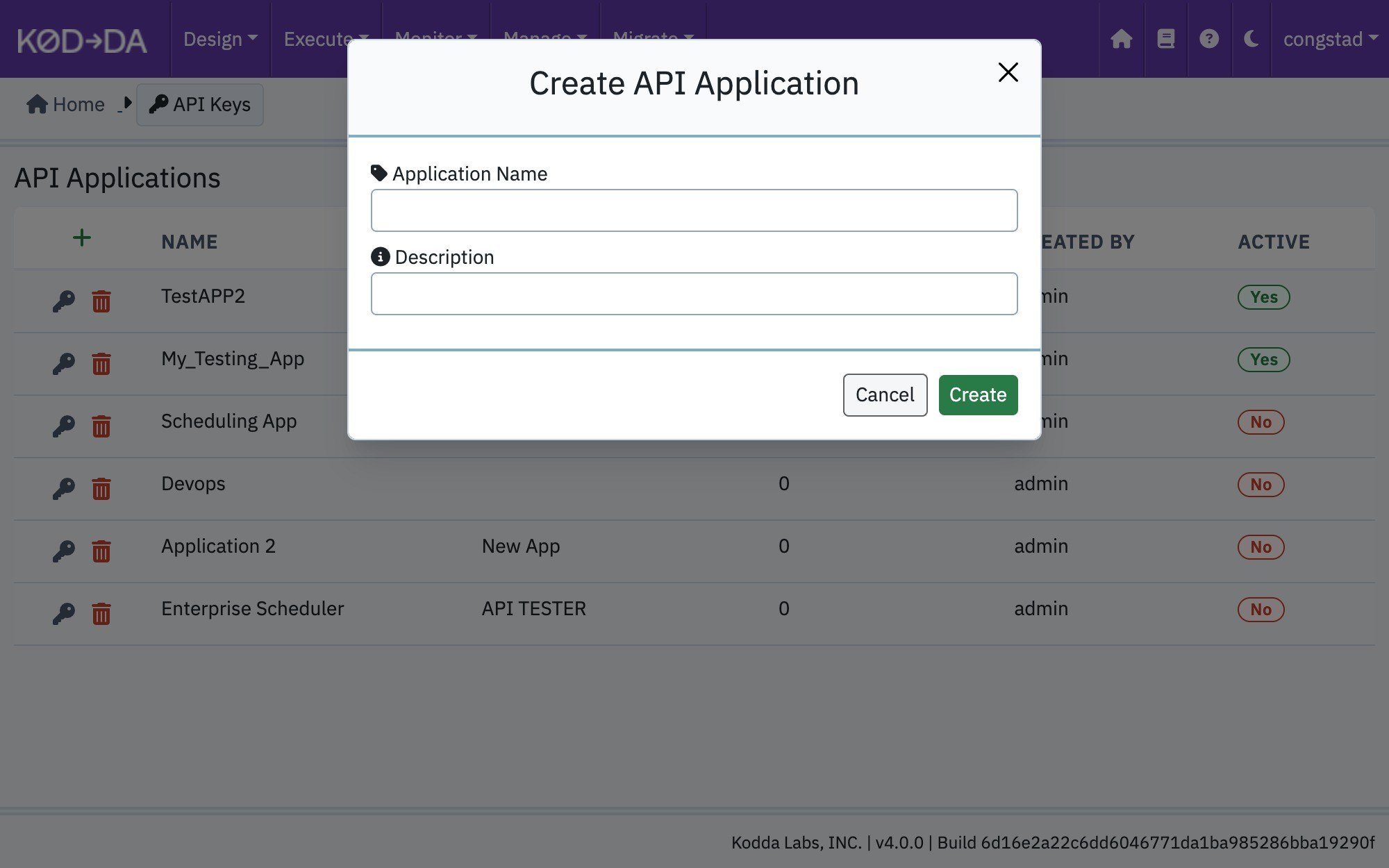
View and manage keys
Clicking the key icon on an application row opens its key list. For each key you can see the first characters of the key (the prefix, useful for matching a key to the system that holds it), when it was created, when it was last used, and whether it is active.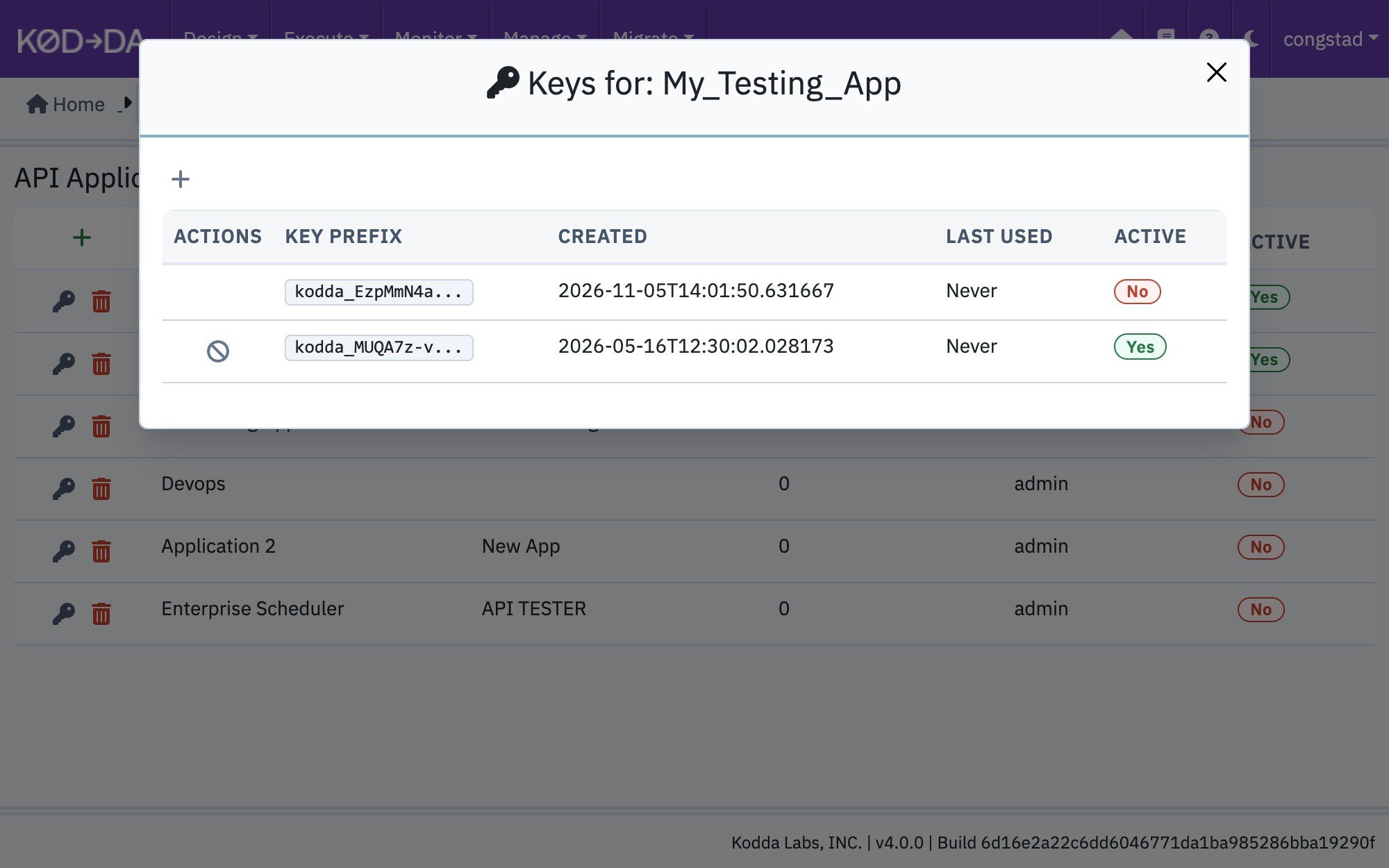
- Click + to generate a new key for this application.
- Click the revoke icon on a key row to deactivate it. You will be asked to confirm. Revoked keys remain in the list, marked No under Active, so you keep a record of what was issued.
Generate a key
When you generate a key, Kodda shows the full key value one time.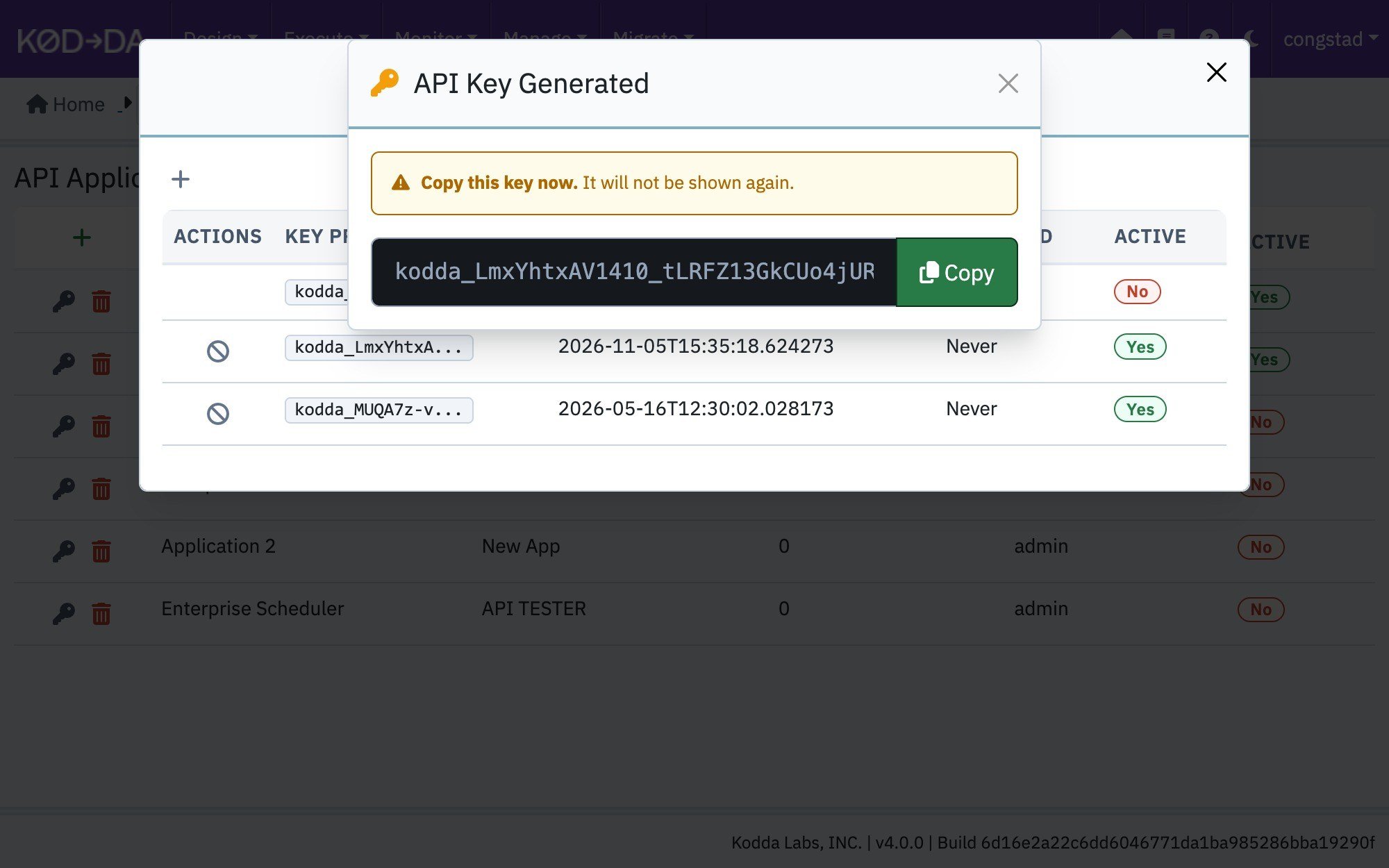
Using an API key
Send the key as a Bearer token in theAuthorization header. API keys are accepted only on the external API, under /kodda/api/v1/.
See the API Docs for request and response details.
A request is rejected with
401 Invalid or expired API key when the key has been revoked or belongs to a deactivated application. A request to a path outside /kodda/api/v1/ with a Bearer token is rejected with 403.